📄 Free tool · no signup

Free Word to PDF Converter

Convert a Word (.docx) resume, cover letter or form into a PDF with selectable text — free, and your document is converted inside your browser without any upload. Sending a resume as a PDF keeps its layout the same on every device, while text stays selectable for recruiters and screening software.

One .docx file, up to 30 MB. Your document never leaves this device — your browser does the conversion.

The PDF is rebuilt from your document’s text, headings, lists, tables and pictures — it is not an exact copy of Word’s layout. Text boxes, columns, headers and footers and special fonts may look different. For a pixel-perfect copy, use Save as PDF in Word itself.

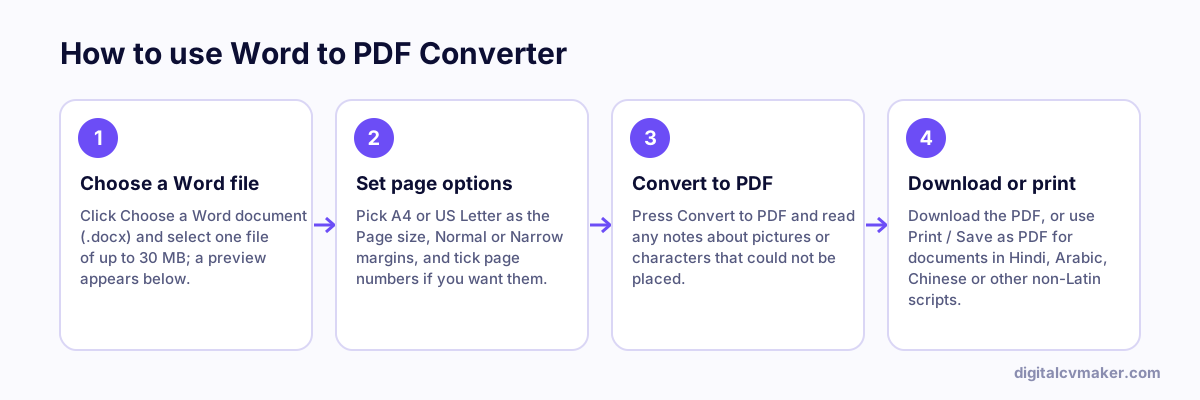
How to use Word to PDF Converter: 1. Choose a Word file, 2. Set page options, 3. Convert to PDF, 4. Download or print.
How to use the Word to PDF Converter, step by step.

How to turn your Word resume into a PDF

Most job portals, including LinkedIn, Indeed, Naukri and company career pages, accept Word files, but a PDF looks the same on every phone and laptop and cannot be edited by mistake. HR teams also find PDFs easier to forward and print.

  1. Save your resume in Word as .docx. If you have an old .doc file, open it and use Save as → Word Document first.
  2. Choose the file above and check the preview. Headings, bold text, bullet points and tables should all be there.
  3. Pick A4 (or US Letter for the US and Canada), keep normal margins, and press Convert to PDF.
  4. Open the downloaded PDF and read it once on your phone before you send it.

Getting a clean result

  • Simple layouts convert best: one column, real headings, normal bullet lists and plain tables.
  • Two-column templates built with text boxes will come out as a single column. If the design matters, use Save as PDF in Word.
  • Hindi, Arabic and other non-Latin text needs fonts this converter does not carry. For such files, use the Print / Save as PDF button, which uses your browser’s fonts, or export from Word directly.
  • Keep the file name professional, for example firstname-lastname-resume.pdf.
  • Need to attach certificates too? Join them with Merge PDF, or turn photos of documents into a PDF with Images to PDF.

Before converting, run your resume through the resume checker to catch missing sections, or browse more free career tools.

Worked example

A Word resume turned into a portal-ready PDF

What goes in

File: resume.docx with headings, bullets and a small photo Target: job portal that accepts PDF only Old copy: resume.doc from years ago

What you get

The .docx converts to a PDF with the headings, lists and photo in place, and the text stays selectable, so screening software and recruiters can search and copy it. The old .doc file is not accepted, so the applicant opens it in Word, saves it as .docx and converts that copy. Before uploading he opens the PDF to check that lines did not move to a new page, since rebuilding can change spacing slightly. The file never leaves the browser.

Common mistakes

  • Trying to convert an old .doc file directly; save it as .docx in Word first, then convert the new copy.
  • Using “Print to image” or a screenshot to make the PDF, which leaves text that cannot be selected, searched or read by screening software.
  • Uploading without opening the PDF once to check page breaks, fonts and that nothing has moved.

When to use it: Use Word to PDF to send a .docx resume or letter with a fixed layout; if you are building a new resume, the resume builder downloads PDF directly.

FAQ

Frequently asked questions

No. The .docx file is opened and turned into a PDF by your own browser, using scripts and a font that load with this page. The document never leaves your device, so it is safe for resumes, offer letters and anything with your phone number or address. Close the tab and it is gone.

This converter reads the text, headings, bold and italic words, lists, tables and pictures, then lays them out again on a clean page. Word-only features such as text boxes, columns, headers and footers, exact spacing and special fonts are not copied. For an exact copy, open the file in Word and use File → Save as → PDF.

Not reliably. The PDF uses one built-in font that covers English, most European languages, the ₹, $, £ and € signs and common symbols, but not Devanagari, Arabic, Chinese or other such scripts. The page warns you if such text is found. For those documents, use Save as PDF in Word or print to PDF from the preview.

Convert to PDF builds the file here with page size, margins and page numbers you choose, and gives you a download. Print / Save as PDF opens your browser’s print window with the preview, so you can pick "Save as PDF" there — it uses your browser’s fonts, which helps with Hindi, Arabic or other scripts.

Your own website, live in minutes

Your headline, bio and contact card at your own link. 7-day free trial, no card needed.

Start free
Chat on WhatsApp