How to merge PDFs for a job or college application
Many portals, including government recruitment forms and campus placement sites, accept only one PDF for "supporting documents". Combining everything into a single, well-ordered file saves you from re-uploading and makes life easier for the HR team checking it.
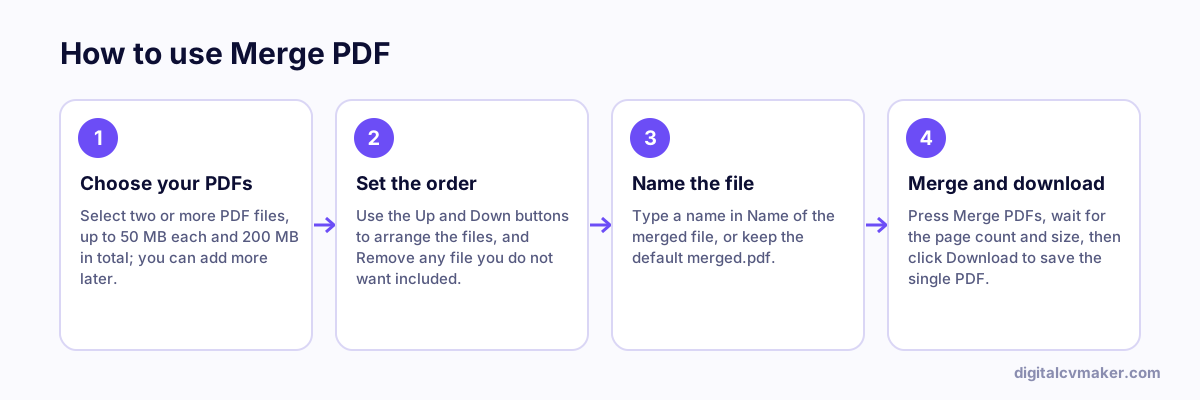
- Add all your PDFs above. Page counts appear next to each file so you can spot a wrong or blank file.
- Set the order: resume or application first, then ID proof, then mark sheets from the latest qualification backwards, then experience and relieving letters.
- Give the file a clear name such as firstname-lastname-documents.pdf and press Merge PDFs.
- Check the total size shown before you upload. If the portal limit is small, reduce the scans first.
Tips before you merge
- Photos of documents? Turn them into a PDF first with the images to PDF tool.
- Need only a few pages from a long file? Pull them out with Split PDF and merge the result.
- Password-protected PDFs must be unlocked in a PDF reader before they can be merged.
Sending your documents to recruiters often? A personal website keeps your resume and certificates at one link — see the other free tools.