🔃 Free tool · no signup

Free Rotate PDF

Turn sideways or upside-down PDF pages the right way up — rotate every page or only the ones you pick, free and entirely in your browser. Rotating a page in a PDF viewer often changes only the view; saving a rotated copy fixes the page for everyone who opens the file.

Up to 100 MB. Your file never leaves this device.

Rotation happens in your browser. No file is uploaded or stored.

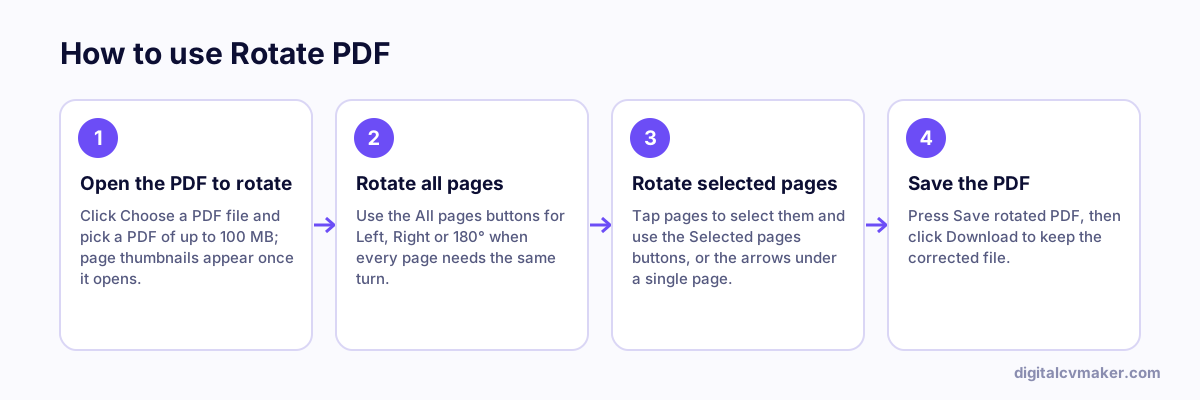
How to use Rotate PDF: 1. Open the PDF to rotate, 2. Rotate all pages, 3. Rotate selected pages, 4. Save the PDF.
How to use the Rotate PDF, step by step.

Why PDF pages come out sideways

Phone scanning apps and office scanners often guess the orientation wrongly — a landscape mark sheet, an Aadhaar card placed at an angle or a two-page spread ends up sideways or upside down. HR teams and job portals will usually accept the file, but a reviewer then has to tilt their head or phone to read it, and some ask you to upload again.

How to fix page orientation

  1. Choose the PDF. A small preview of every page appears.
  2. If every page is wrong the same way, use the All pages buttons. Otherwise use the arrows under each wrong page, or tap several pages and rotate the selection.
  3. Check the previews, then save. The file name ends in -rotated so you can tell it apart from the original.
  4. Open the download once before you upload it to a portal or send it on email.

Rotation is stored as a page setting, so text remains searchable and the scan keeps its original quality.

Related tools

Worked example

Two sideways pages in a scanned application

What goes in

File: an 8-page scanned application Pages 3 and 6 are sideways; page 7 is upside down All others are correct

What you get

Pages 3 and 6 are selected and rotated 90° in the right direction, and page 7 is turned 180°, while the other five pages are left alone. Rotating all pages together would have spun the correct pages sideways instead. Saving creates a new PDF where the fix is part of the file, unlike rotating the view in a PDF reader, which only changes how it looks on your own screen. The reviewer who opens it later sees every page upright.

Common mistakes

  • Rotating the view in a PDF reader and sending the file, which still opens sideways for everyone else because the change was never saved.
  • Rotating all pages when only one or two are sideways, which turns the pages that were already correct.
  • Turning a page 90° the wrong way and not checking the preview, so it ends up upside down instead of upright.

When to use it: Use rotate PDF when pages are sideways or upside down; to also reorder or delete pages at the same time, organize PDF handles all three.

FAQ

Frequently asked questions

It is saved in the file. Each page keeps its rotation setting inside the new PDF, so it opens the right way up in Adobe Reader, Chrome, WhatsApp previews and on job portals. The page content itself is not re-drawn, so text stays sharp and selectable and the file size barely changes.

Yes. Use the arrow buttons under a page to turn just that page, or tap several pages to select them and rotate the selection together. Pages you do not touch stay exactly as they were, which suits a scanned bundle where only one certificate went in sideways.

Encrypted PDFs cannot be changed without the password. Open the file in a PDF reader, enter the password, then use Print → Save as PDF to make an unlocked copy and rotate that copy here. Bank statements and e-filed forms are often locked like this.

No. Rotating changes one setting per page; the scanned image is not recompressed or resized. The small preview thumbnails on this page are only for guidance and are not what goes into your download, so the saved file has the same quality as the one you chose.

Your own website, live in minutes

Your headline, bio and contact card at your own link. 7-day free trial, no card needed.

Start free
Chat on WhatsApp