🗂️ Free tool · no signup

Free Organize PDF Pages

Reorder, delete, duplicate or extract PDF pages by dragging thumbnails or tapping buttons — a free page organiser that works inside your browser. Removing blank or duplicate pages and putting documents in a clear order makes a PDF quicker to review and smaller to upload.

Up to 100 MB. Your file never leaves this device.

Pages are rearranged in your browser. No file is uploaded or stored.

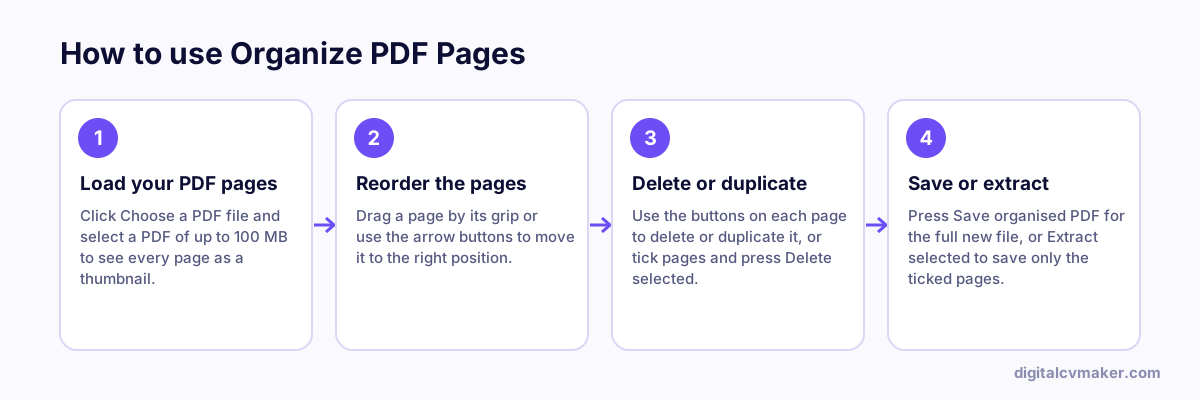
How to use Organize PDF Pages: 1. Load your PDF pages, 2. Reorder the pages, 3. Delete or duplicate, 4. Save or extract.
How to use the Organize PDF Pages, step by step.

When to rearrange PDF pages

Document bundles for joining formalities, background verification or a visa file are usually scanned in whatever order the papers were lying on the table. Reviewers expect a logical order — ID proof, education from Class 10 upwards, then experience and relieving letters — and they notice blank or duplicate pages. A few minutes of tidying makes the file easier to check.

A quick routine for a clean document bundle

  1. Choose the PDF and wait for the thumbnails to appear.
  2. Delete blank pages, back sides with nothing useful and accidental double scans.
  3. Drag the pages into the order the form or HR email asks for. Duplicate a page if the same certificate must appear twice.
  4. Save, then open the new file and flip through it once before you upload.

If a portal wants each document separately, tick those pages and use Extract selected, or split the file into parts. Your original file stays unchanged, so you can always start again from it.

Related tools

Worked example

Tidying a scanned document set before upload

What goes in

File: 12 scanned pages for a visa application Problems: two blank pages, one page scanned twice, ID page at the end Wanted order: ID first, then the rest

What you get

With every page shown as a thumbnail, the two blank pages and the duplicate are easy to spot and delete, and the ID page is dragged to the front. The result is a nine-page PDF in the order the checklist wants, smaller to upload and quicker for an officer to review. When the wrong page is deleted by mistake, Undo brings it back. The original file is unchanged, so it is kept until the new copy has been checked.

Common mistakes

  • Deleting pages without zooming in on the thumbnails, then removing a page that looked blank but held a faint signature or stamp.
  • Deleting the original file before checking the new one, leaving no way back if a page went missing.
  • Reordering by memory instead of following the document checklist from the form, so the reviewer still has to search.

When to use it: Use organize PDF to reorder, delete or duplicate pages visually; for a quick page range like 1-3, 7, split PDF is faster.

FAQ

Frequently asked questions

Press and hold the ⠿ grip at the top of a page, drag it to its new place and let go. If dragging is awkward on a small screen, the ← and → buttons under each page move it one place at a time, and they also work with a keyboard or screen reader.

Yes. Deleted pages stay on screen, faded, with a Restore button, and the Undo button reverses your last few changes one by one — moves, deletions and copies. Nothing is final until you save, and your original file on the device is never changed.

Save organised PDF keeps every page that is not deleted, in the order on screen. Extract selected makes a separate PDF with only the pages you ticked, in screen order — useful for pulling the two pages an HR form needs out of a long scanned bundle without touching the rest.

Pages are copied as they are, so text, images, scans and page rotation are kept exactly. Document-level extras such as the bookmark list, fillable form fields and links that jump between pages may not survive, because the page order changes. Keep the original if you need those.

Your own website, live in minutes

Your headline, bio and contact card at your own link. 7-day free trial, no card needed.

Start free
Chat on WhatsApp