🔢 Free tool · no signup

Free Add Page Numbers to PDF

Add page numbers to any PDF for free — choose the corner, a format like "Page 1 of 10", the start number and whether to skip the cover page. Page numbers help reviewers refer to a specific page of a long application, report or set of certificates, especially when it is printed.

Up to 100 MB. Your file never leaves this device.

Numbers are added in your browser. No file is uploaded or stored.

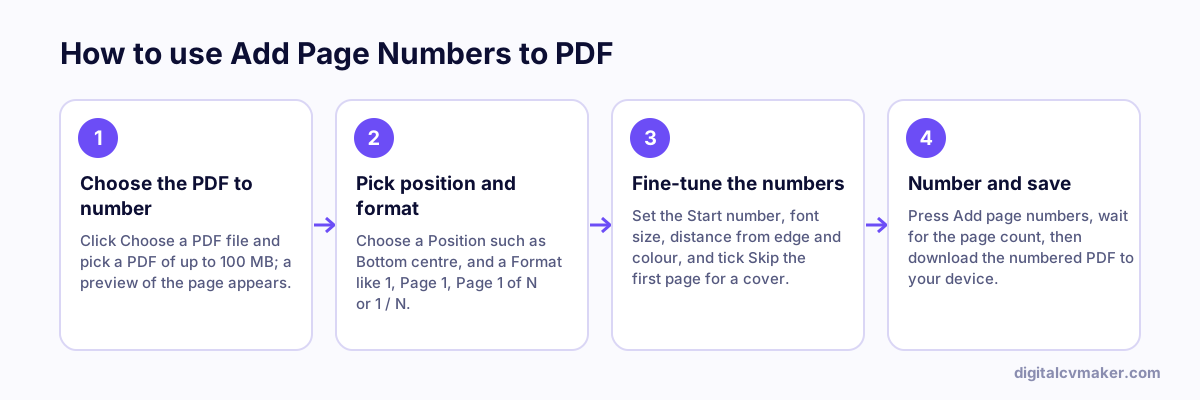
How to use Add Page Numbers to PDF: 1. Choose the PDF to number, 2. Pick position and format, 3. Fine-tune the numbers, 4. Number and save.
How to use the Add Page Numbers to PDF, step by step.

When page numbers matter

Project reports, internship files, tender documents and bundles sent for background verification are often printed and read on paper. If pages get separated or a reviewer writes "see page 7" in an email, numbers save a lot of back and forth. Colleges and many HR teams ask for numbered pages in reports and annexures for the same reason.

Choosing a sensible style

  • Bottom centre with "Page 1 of N" is the safest choice for reports and formal submissions — readers can see at once if a page is missing.
  • Bottom right suits documents that are printed single-sided and stapled at the top left.
  • Skip the cover page for project reports and proposals, and set the start number to match how your index counts pages.
  • Keep the size between 9 and 12 pt. Larger numbers look like part of the content.

Put the pages in their final order before numbering — numbers are drawn onto the pages, so moving pages afterwards leaves them out of sequence.

Related tools

Worked example

Numbering a project report with a cover page

What goes in

File: a 24-page project report with a cover page Format: Page 1 of N, position: Bottom centre Skip the first page (cover): ticked

What you get

With the cover skipped, numbering begins on the second page and reads “Page 1 of 23” there, so the cover stays clean, as is usual for reports. Bottom centre keeps the numbers clear of headers and binding. The total counts only the numbered pages, which keeps “of N” honest. A reviewer can now say “see page 12” and everyone finds the same page, which matters most once the report is printed and the pages are loose.

Common mistakes

  • Numbering the cover page as page 1, when most reports and applications leave the cover unnumbered and start counting from the first page of content.
  • Placing numbers too close to the edge, where a printer trims or a binding hides them; leave enough distance from the edge.
  • Adding numbers before merging the final document, so the numbering restarts or breaks when more files are added later.

When to use it: Add page numbers after the document is final and merged; if pages are still out of order, fix that first with organize PDF.

FAQ

Frequently asked questions

Tick "Skip the first page". The cover stays clean and numbering begins on page 2 with the start number you choose — keep it at 1 if the second page should read "Page 1", or set it to 2 if the cover should still be counted. "Page 1 of N" then counts only the numbered pages.

Yes. Set the start number to anything from 0 upwards. This helps when a document continues from an earlier file — for example an annexure that must run on from page 15 of the main report, or project pages that follow a separately printed index.

They can if the page has content close to the edge. Use the preview: increase the margin to move the number further in, switch between top and bottom, or pick a smaller font size. Scanned pages often have space at the bottom, while typed reports may already have a footer.

They are real text in a standard PDF font, drawn on top of each page. They print sharply, stay selectable and are picked up by PDF search. The rest of each page is not changed or recompressed, so scans keep their quality.

Your own website, live in minutes

Your headline, bio and contact card at your own link. 7-day free trial, no card needed.

Start free
Chat on WhatsApp