🔁 Free tool · no signup

Free LinkedIn to Resume Converter

Paste the text of your LinkedIn profile or open its PDF, check what was found, and send your experience, education and skills into the free resume builder. LinkedIn’s own Save to PDF option, under the More button on your profile, gives a text copy of your profile without sharing your password or any login.

No LinkedIn login, no scraping. You copy your own profile text; it is read in your browser and saved only in this browser.

  1. On LinkedIn, open your own profile, click More and choose Save to PDF.
  2. Open that PDF below, or select all of its text, copy and paste it into the box.

Everything runs in your browser. Nothing is uploaded, and LinkedIn is never contacted.

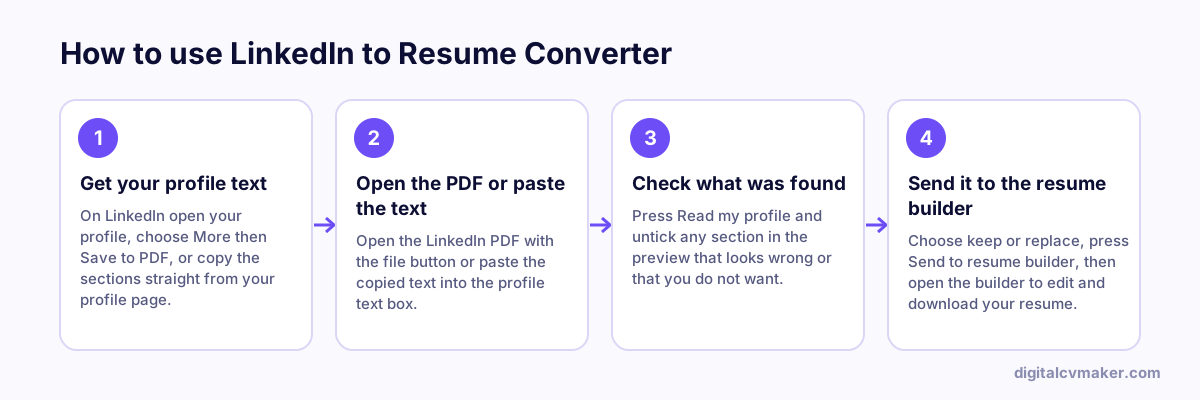
How to use LinkedIn to Resume Converter: 1. Get your profile text, 2. Open the PDF or paste the text, 3. Check what was found, 4. Send it to the resume builder.
How to use the LinkedIn to Resume Converter, step by step.

Turning a LinkedIn profile into a resume

Your LinkedIn profile and your resume share the same facts, but they are written for different readers. A profile is a public page people scroll through; a resume is a one- or two-page document tailored to one job. Once your details are in the builder, tighten them:

  • Cut your About section to three or four lines that match the job you want.
  • Turn job descriptions into short bullet points that start with an action and end with a result.
  • Keep the ten to fifteen skills that the job description asks for, not every skill on your profile.
  • Remove endorsements, follower counts and other profile-only details.

What the reader picks up

It looks for the section headings LinkedIn uses — About or Summary, Experience, Education, Skills or Top Skills, Licenses & certifications, Languages, Honors & awards and Projects. Inside Experience, each date line — a start month and year followed by an end date or “Present” — marks one job, with the title and company on the lines above it.

Next steps: finish your resume in the free resume builder, match it to a vacancy with tailor resume to job, rewrite your profile summary with the LinkedIn About generator or browse resume examples by profession.

Worked example

Turning a LinkedIn PDF into a resume draft

What goes in

Source: LinkedIn "Save to PDF" file of the profile Sections found: About, Experience (two roles at one company), Education, Skills Mode: keep what I already have

What you get

The file is read on the device, without logging in to LinkedIn. The About text becomes the summary, the two roles under one company become two experience entries with their dates, and the degree and skills are listed for review. Because the resume builder already had a name and phone number, keep-what-I-have mode fills only the empty fields and adds the jobs and skills that were missing. The applicant then opens the builder, trims the summary to three lines and downloads the resume.

Common mistakes

  • Copying the whole LinkedIn page including menus and recommendations, which adds noise; the Save to PDF file or the profile sections give cleaner results.
  • Choosing replace mode without checking, which overwrites a resume you had already tailored for a specific job.
  • Sending the imported text as is; LinkedIn summaries are often longer and more casual than a resume summary should be.

When to use it: Use it when your LinkedIn profile is more complete than your resume and you want a quick first draft instead of retyping every job.

FAQ

Frequently asked questions

No. This tool never connects to LinkedIn and never asks for your login. You copy the text of your own profile, or download it with LinkedIn’s Save to PDF option, and paste or open it here. The text is read in your browser and saved only in this browser’s resume draft.

Open your own profile on a computer, click the More button under your name and choose Save to PDF. Open that PDF here with the file button, or open it on your computer, select all the text, copy it and paste it into the box. You can also copy the About, Experience and Education sections one by one.

Not unless you ask it to. By default it fills only empty fields and adds jobs, education and skills that are not already in your draft. If you choose to replace sections, it asks you to confirm first, and only the sections you ticked are replaced.

LinkedIn pages and PDFs do not mark which line is a job title and which is a company, so the tool uses patterns such as date lines to guess. Check the preview before sending, untick anything that looks wrong, and correct the details in the resume builder afterwards.

Put your resume online as your own website

One link for applications, LinkedIn and WhatsApp. 7-day free trial, no card needed.

Start free
Chat on WhatsApp