📉 Free tool · no signup

Free Compress Image

Compress JPG, PNG and WebP images to a target size like 20 KB, 50 KB or 100 KB, one or many at a time — free and in your browser. Online application forms often set photo limits such as 20 to 50 KB, and some also set a minimum size, so check the official notice.

    Each form sets its own KB range, pixel size and file type. Check the official notice before you upload, and note that some forms also set a minimum size.

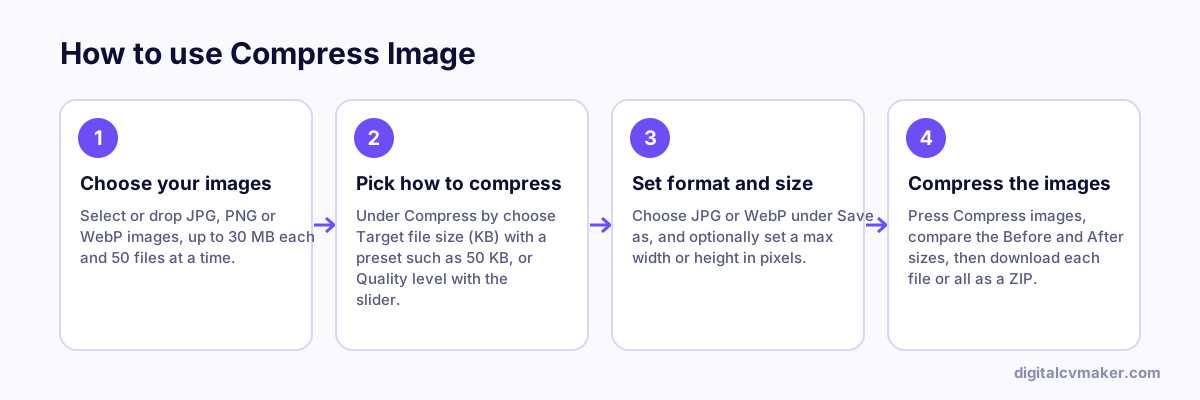
    How to use Compress Image: 1. Choose your images, 2. Pick how to compress, 3. Set format and size, 4. Compress the images.
    How to use the Compress Image, step by step.

    How to reduce a photo to the KB size a form asks for

    1. Read the notice for the maximum and minimum KB, the file type and any pixel size. A limit such as 20–50 KB means your file must land inside that range.
    2. Add the photo, choose the target just below the maximum (for example 50 KB) and keep JPG, which almost every government and job portal accepts.
    3. Press Compress and check the size shown. KB here means 1,000 bytes, so the file also passes portals that count 1,024 bytes per KB.
    4. Open the preview once. If the face or text looks blurred, start from a better-lit original or allow a slightly higher limit.

    Getting a small file that still looks sharp

    • Crop away empty background before compressing — fewer pixels leave more room for detail.
    • Plain, evenly lit photos compress far better than busy or grainy ones taken in dim light.
    • For a website or your online profile, WebP at around 75% quality usually gives the best balance.
    • Compressing the same JPG again and again adds blur, so always work from the original.

    Need an exact pixel size, such as a passport photo or signature? Use the photo resizer first. To send many scanned pages as one file, try images to PDF, or browse all free tools.

    Worked example

    A signature scan for a 20 KB form field

    What goes in

    File: signature photo from a phone, 2.6 MB Maximum size per image: 20 KB, save as: JPG Max width: 400 px

    What you get

    Setting a maximum width of 400 px first reduces the pixel count, which cuts the size far more than lowering quality alone. The tool then lowers JPG quality step by step until the image is under 20 KB. Reducing dimensions keeps the signature lines sharper at such a small target than squeezing quality on a full-size photo would. If compressing would not make a file smaller, the tool keeps the original. JPG is chosen because WebP, though smaller, is not accepted by every form.

    Common mistakes

    • Keeping the full camera resolution and forcing a tiny KB target by quality alone, which makes the image blocky and hard to read.
    • Saving as WebP for a government or exam form that only accepts JPG, then finding the upload rejected.
    • Ignoring the minimum file size some forms set, as an image that is too small can be refused like one that is too large.

    When to use it: Use compress image when a photo just needs to fit under a KB limit; when the form also gives exact pixel dimensions, the photo resizer handles both together.

    FAQ

    Frequently asked questions

    Pick the target from the list and press Compress. The tool finds the highest JPG or WebP quality that stays under your limit. If quality alone is not enough, it reduces the pixel size step by step. The final size is shown in KB and bytes, so you can check it against the form before uploading.

    Very low KB targets cannot hold a large phone photo, however much the quality is lowered. The tool keeps the long side at 200 pixels or more and tells you when even that cannot fit. For a form that needs exact pixels, resize it first with the photo resizer and then compress.

    JPG cannot store transparency, so transparent areas are filled with white before compression. This suits signatures and logos for most forms. WebP output also gets a white background here, to keep the result predictable when a portal shows it on a light page.

    No. Compression runs in your own browser with its built-in image encoder, so photos, signatures and scanned ID pages never leave your phone or computer. It is free, needs no signup, and everything is cleared when you close the tab. Each newly made file also leaves out location and camera details.

    Your own website, live in minutes

    Your headline, bio and contact card at your own link. 7-day free trial, no card needed.

    Start free
    Chat on WhatsApp