🔄 Free tool · no signup

Free Image Converter

Convert many images between JPG, PNG and WebP at once, with optional resizing and a background colour for transparent areas — free, right in your browser. JPG suits photos and gives small files, PNG keeps every pixel and transparency, and WebP is usually smallest for images on websites.

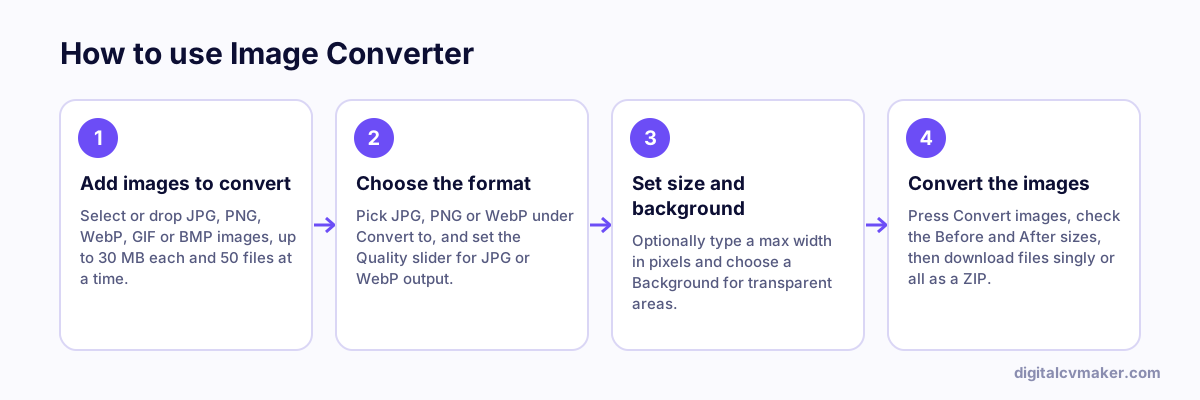
    How to use Image Converter: 1. Add images to convert, 2. Choose the format, 3. Set size and background, 4. Convert the images.
    How to use the Image Converter, step by step.

    Which image format to use, and when

    • JPG: the safe choice for photos, passport-style pictures and scanned pages you upload to government, exam and job portals.
    • PNG: best for screenshots, logos, charts and signatures with a transparent background. Files are larger, but edges and text stay sharp.
    • WebP: much smaller files at similar quality, ideal for your portfolio or personal website. Some older portals still reject it, so check before uploading.

    How to convert images in three steps

    1. Add one or more images. You can mix formats — for example phone photos, a GIF and a few PNG screenshots.
    2. Pick the output format. For JPG and WebP, a quality of 80–90% keeps photos clear while trimming the size. Add a max width, such as 1600 px, if the images are for email or a website.
    3. Press Convert, check the sizes shown, and download each file or everything as one ZIP. File names stay the same; only the extension changes.

    A form wants the file under a set size, like 50 KB? Use compress image. For an exact passport or signature size, try the photo resizer, or see all free tools.

    Worked example

    Logos and photos for a personal website

    What goes in

    Files: 8 PNG project screenshots and 1 PNG logo with a transparent background Convert to: WebP for the screenshots Logo: needs to stay transparent

    What you get

    The eight screenshots convert to WebP, which is usually the smallest of the three formats for images on a website, so pages load faster on mobile data. The logo is left as PNG, since converting a transparent PNG to JPG would fill the clear areas with a solid colour and put a box around it; WebP would also keep transparency if a smaller file were needed. All nine images are handled in one batch inside the browser, so nothing is uploaded, and optional resizing caps the width for the site.

    Common mistakes

    • Converting a transparent PNG logo to JPG, which adds a solid background because JPG does not support transparency.
    • Using WebP for files you will email or attach to a job form, where some older software and portals still expect JPG or PNG.
    • Converting a JPG to PNG to “improve quality”, which only makes the file larger; detail already lost cannot be restored.

    When to use it: Use the image converter to change file formats in bulk; when the goal is mainly a smaller file under a KB limit, compress image is more direct.

    FAQ

    Frequently asked questions

    Choose JPG for photos you upload to job portals, exam forms and email, since almost every site accepts it. Choose PNG for screenshots, logos and signatures that need crisp edges or a transparent background. Choose WebP for your own website or online profile, where a smaller file loads faster.

    JPG cannot store transparency, so the transparent parts are filled with the background colour you pick — white by default. Converting to PNG or WebP keeps the transparency as it is. Pick a colour that matches where the image will be shown, such as white for most forms.

    PNG saves every pixel without loss, so a camera photo turned into PNG is often several times larger than the JPG it came from. That is normal. Convert photos to JPG or WebP when size matters, and keep PNG for graphics with flat colours and text.

    Yes, GIF and BMP files can be added and saved as JPG, PNG or WebP. For an animated GIF only the first frame is kept. All conversion happens in your browser, so the images never leave your device and nothing is stored after you close the tab.

    Your own website, live in minutes

    Your headline, bio and contact card at your own link. 7-day free trial, no card needed.

    Start free
    Chat on WhatsApp