✉️ Free tool · no signup

Free Email Signature Generator

Fill in your details and copy a clean, professional email signature into Gmail, Outlook or Apple Mail. Free, no signup. A professional email signature usually needs only your name, role, organisation, one phone number, a website and one or two profile links.

Uploaded photos are cropped round and shrunk on your device, then stored inside the signature. Outlook and Apple Mail usually keep them, but Gmail and some other email apps block photos stored this way. For Gmail, paste the web address of a photo already on your website or profile page into the photo link field.

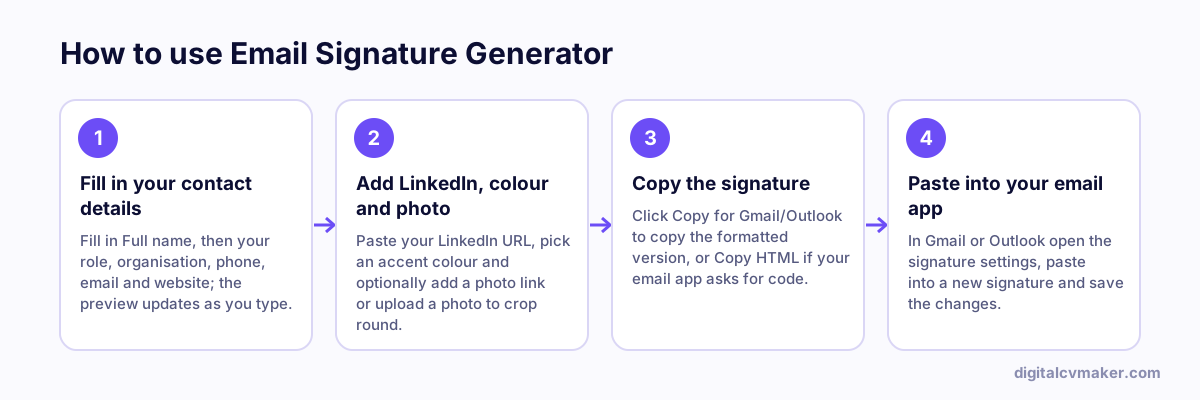
How to use Email Signature Generator: 1. Fill in your contact details, 2. Add LinkedIn, colour and photo, 3. Copy the signature, 4. Paste into your email app.
How to use the Email Signature Generator, step by step.

What makes a good email signature

Every email you send is a small introduction. A good signature answers three questions at a glance — who you are, what you do and how to reach you — and nothing more. Keep it to four or five lines, use one accent colour, and link to a page that tells the rest of your story.

  • Link your personal website instead of listing every social profile.
  • One phone number is enough; add WhatsApp only if you use it for work.
  • Avoid images of text — many email apps block images, and the signature disappears.
  • A small round photo helps people put a face to your name. For Gmail, link to a photo hosted on your website; uploaded photos work best in Outlook and Apple Mail.

Want a card people can scan instead? Try the QR business card maker.

Worked example

A signature for a freelance chartered accountant

What goes in

Name and role: Chartered Accountant, practice name Phone: one mobile number Links: website and LinkedIn

What you get

The generator builds a text signature with the name in bold, role and practice on the next line, one phone number, then the website and LinkedIn links. Copy signature puts it on the clipboard with its formatting, and it pastes straight into Gmail’s signature settings. Because the signature is text rather than a single image, it still shows when a client’s email app blocks images, and the phone number can be tapped to call. The accountant leaves out a second number and a quote, keeping it to four lines.

Common mistakes

  • Making the whole signature one image, which many email apps block by default, so recipients see an empty box instead of your details.
  • Adding every social profile, two phone numbers and a motivational quote, which makes each short reply twice as long as the message.
  • Forgetting to set the signature on your phone’s mail app too, so emails sent on the move go out with no contact details.

When to use it: Use the signature generator for the contact block at the end of every email; for a scannable contact on paper, use the QR business card tool.

FAQ

Frequently asked questions

Click “Copy for Gmail/Outlook”, then in Gmail open Settings → See all settings → General → Signature, create a new signature and paste. Scroll down and click Save changes. If you want a photo in Gmail, use the photo link field, because Gmail drops photos that are pasted as embedded images.

Click “Copy for Gmail/Outlook”, then in Outlook open Settings → Mail → Compose and reply (or File → Options → Mail → Signatures on desktop), paste into a new signature and save.

Your name, role, organisation, one phone number, your website and one or two profile links. Skip quotes, large images and long legal text — a short signature looks more professional and works on phones.

No. The signature is built in your browser from what you type, and a photo you choose is cropped and shrunk on your device. Nothing is sent to our servers or saved. If you use a photo link, the image stays wherever you host it, such as your own website.

Link your signature to your own website

One link in every email that shows your work, experience and contact card. Live in minutes.

Start free
Chat on WhatsApp